CAPTURE KIOSK
Creating & Deploying a RightBooth Package
Technician how-to guide
Example project: Madame Tussauds · Internal document
Overview
This guide walks a technician through building a Capture Kiosk event in RightBooth and packaging it for deployment to a site kiosk. The example shown is the Madame Tussauds capture experience.
Step 1 — Get the project's Visual Guide and resources
Every Capture Kiosk project has a Visual Guide that defines the guest-facing screen flow and links to everything you need. Open the link you have been provided. The download links for the resources are at the top right: the preview video, the RightBooth file and assets (including the camera live-feed overlays for each camera position), and the required font (Gotham Bold for Madame Tussauds) to install on the local kiosk.
Step 2 — Download and extract the assets
The assets link opens a shared Google Drive folder (Shared with me → RightBooth_Package). Download the FINAL_ASSETS folder to the kiosk PC — Drive delivers it as a .zip — and extract it so the FINAL_ASSETS folder is available locally.
Step 3 — Create a new event in RightBooth
With the latest version of RightBooth MM installed (example: Version 7.1.10), launch the app and click Create in the top toolbar to start a new event.
Step 4 — Choose the event type
In the Event Wizard, under Choose the event type, select Create a Photo capture event and click Next >.
Step 5 — Set the number of photos and extra screens
Enter the number of photos each guest can take (1–10). In this example, set it to 1. Tick Include 'Get ready' screen and Include 'Countdown' screen, then click Next >.
Step 6 — Show photo to the user and allow retake
Set both options to Yes: show each photo to the guest after it is taken, and let the guest re-take the photo if they are not happy with it. Click Next >.
Step 7 — Add the Thank you screen
When asked whether to show a screen that thanks the guest after they finish, select Yes to add the Thank you screen at the end of the event, then click Next >.
Step 8 — Choose the background type
Choose the background type. Select Colour and pick a colour that fits the event. Note: this background will not be visible in the final event (the screen designs cover it), so any related colour is fine. Click Next >.
Step 9 — Set the text style
You do not need to select the font here yet if it is not installed on the machine — that can be done later. What matters at this step is to deselect both Add a shadow to the text and buttons and Add a border to videos and photos. Then click Next >.
Step 10 — Choose the camera
Select the capture device for the event. In this case choose Canon, as the kiosk uses a Canon EOS R10. Make sure the camera is switched on and connected to a USB port (USB3 preferred) before continuing, then click Next >.
Step 11 — Save the event
Save the new event with a name of your choice — in this example MTEvent — as an Event file (*.rbe), then click Save.
Step 12 — Install the font, then reopen RightBooth
Close the entire RightBooth application. From the extracted FINAL_ASSETS folder, install the font supplied in the package — for Madame Tussauds this is Gotham Bold Regular.ttf (right-click the .ttf file and choose Install). Then reopen RightBooth so the new font is available.
Step 13 — Open the event in the editor
Back in the main RightBooth window, the new event (MTEvent.rbe) is now loaded. To start building the screens, click the Edit button.
Step 14 — Open the Add panel and select Video
Inside Edit, go to the Screen Editor and select Add items. The Add panel opens; from it select Video to add a video item.
Step 15 — Browse for your own file
In the Choose one or more files media browser, click the folder button at the bottom to browse to your own file location (instead of the built-in media categories).
Step 16 — Create a project video folder in the library
This opens the RightBooth library videos folder (rightbooth7 library → videos). Create a new folder named after the project — in this case MT — and copy into it all the videos from the FINAL_ASSETS folder you downloaded earlier.
Step 17 — Check the MT videos folder
For reference, this is how the MT videos folder should look once the video and GIF files have been copied across from FINAL_ASSETS.
Step 18 — Repeat the process for the images
Once the videos are added, close the file windows and go back so RightBooth reloads. In the Add panel select Image and follow the same procedure as for the videos, but this time copy all the image assets from FINAL_ASSETS into an images → MT folder in the library. When the content is added, close the windows and go back.
Note: the .gif files must be added together with the images (they go in the images folder, not the videos folder).
Step 19 — Add the Start screen video from the MT folder
Now start placing the content. On the Start screen, use Add items → Video. In the file browser the new MT category folder now appears in the list — select it and choose the file that belongs on the Start screen, following the UI Visual Guide.
Step 20 — Resize the item to fit the screen
Once added, the item appears small in the centre of the screen with a selection box. Adjust it to fit the screen by dragging the corner nodes (the handles at the corners of the selection box).
Step 21 — Result: the Start screen
After resizing, the Start screen video should fill the whole screen, like this.
Step 22 — Add the title labels
In the Add panel, select Label to add the titles that must appear on the screen. For the Start screen there are three titles:
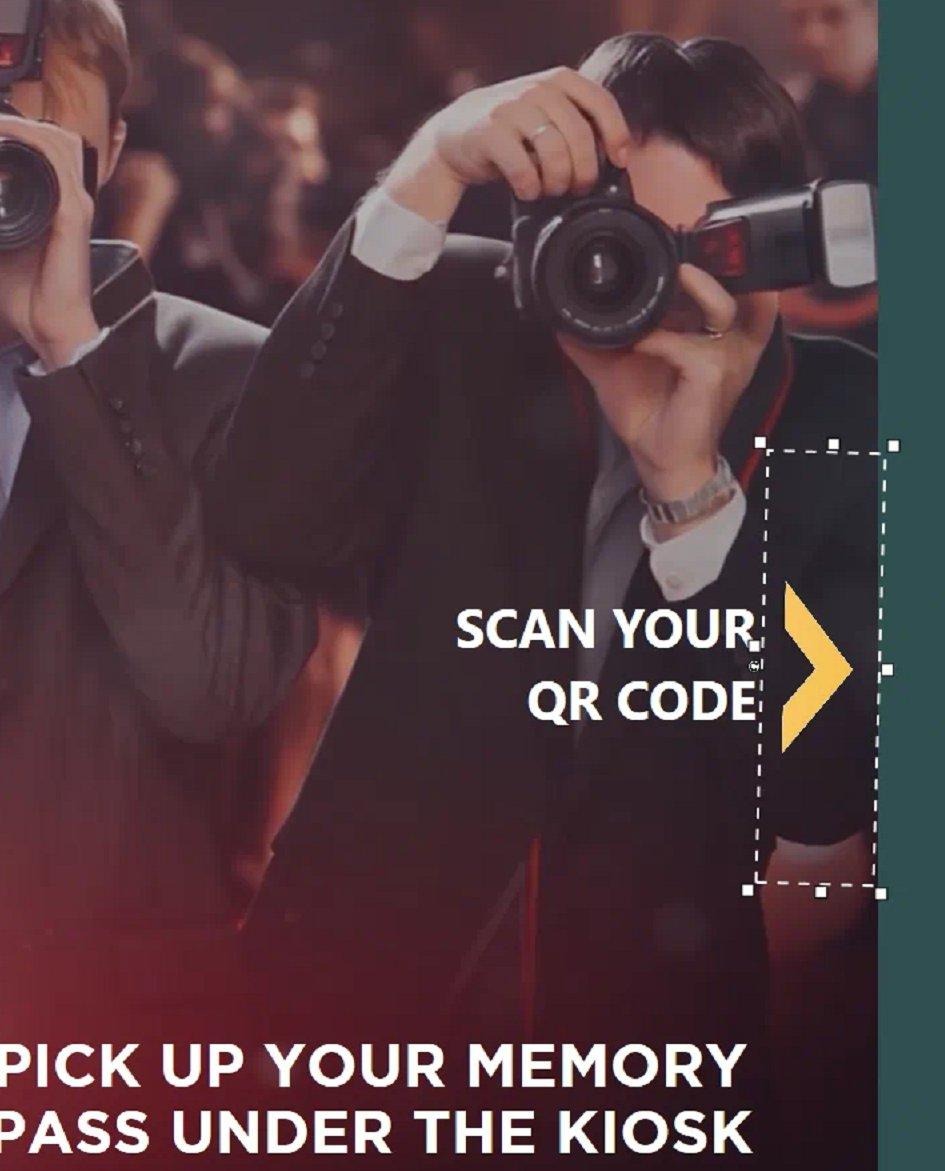
- YOUR PHOTO EXPERIENCE STARTS HERE
- PICK UP YOUR MEMORY PASS UNDER THE KIOSK
- SCAN YOUR QR CODE
A label appears in the centre of the screen (Double click here to alter the content). Double-click the label to edit its text.
Step 23 — Enter the title text
In the Text Editor, type the text for the first title — in this case YOUR PHOTO EXPERIENCE STARTS HERE. The label on the screen updates as you type.
Step 24 — Style and position the label
With the label selected, tick Properties in the Screen Editor to open the Label properties panel. There, set the size with the Scale and choose the font — in this case Gotham Bold. Then drag the label to the position where it should sit. Repeat exactly the same for the other two titles, staying faithful to the Visual Guide.
Step 25 — Result: the three titles placed
With the three titles placed, the Start screen now looks like this. Next, add the arrow .gif, which you will find in the images.
Step 26 — Locate the arrow .gif
In the file browser, open the MT category folder. This is where to find the arrow .gif (highlighted in red below). Make sure you select the .gif version, not the .png.
Step 27 — Result: the arrow added and rotated
This is how the arrow looks once added, positioned and rotated — here pointing to the right, next to SCAN YOUR QR CODE, towards the scanner.
Step 28 — Build the Get ready screen
With the Start screen finished, move to the Get ready screen. On it, add the photo frame (the recuadro), the star sticker that marks the position for the guests, and the title STEP BACK AND GET INTO POSITION, arranged as shown.
Important: change the title colour to black. To change the colour, click the colour box below the font in the Label properties; the Colour selector opens, where you select black.
Step 29 — Adjust the camera live view
In this step you also adjust the camera live view, which here is the black box — it shows black because the lights are off. Position and size it within the frame as needed.
Step 30 — Build the Countdown screen
Move to the Countdown screen and add the following:
- The same frame image (recuadro) used on the Get ready screen.
- The title SMILE AND LOOK AT THE CAMERA.
- A label named CAMERA.
- The arrow .gif pointing at the camera, near where the camera is positioned.
The Countdown screen includes a countdown counter by default (showing 3). Place it where the Visual Guide indicates and adjust its Scale as needed.
Important: the camera Live View must be the same size as on the Get ready screen. Adjust it with the corner nodes and the Scale until it matches.
Step 31 — Set the countdown seconds
Select the countdown item. With Properties open, the Countdown properties panel appears. In the Counter field, set the number of seconds you want — in this case 3.
Step 32 — Add the green-screen overlay video and key out the green
This event has an overlay video with a green chroma (green screen) on top of the Countdown screen, added from Video. It creates an effect that draws the guest's attention to the camera. By default the area that should be transparent shows as green.
To remove the green: once the video is adjusted to the screen, select it to open Video properties. In the Background section, pick the green colour selector so the green is keyed out and disappears from the video.
Step 33 — Result: green removed
It should now look like this, with the green colour of the video no longer visible.
Step 34 — Build the Take photo screen
With the Countdown screen finished, move to the Take photo screen. On it, add the camera image that fills the whole scene, marking where the guest should look.
Step 35 — Exit the editor
This next part is important: exit the Edit window by clicking Exit in the Screen Editor.
Step 36 — Open Design
Back in the main application window, click Design.
Step 37 — Set the Photo capture delay
In Design, go to the Event structure tab and select Take photo. Set the Photo capture delay to 0.1 s and press OK.
What this does: when the event reaches the Take photo screen, the camera trigger fires 0.1 s after switching to that screen.
Step 38 — Set up the Show photo screen
Move to the Show photo screen. Here you do a couple of things:
- Adjust the size of the photo display (the Latest photo item) to how you want the final photo to appear.
- Move the default Redo and Keep buttons off the event screen, because you will add custom buttons next to the event frame in the next steps.
Step 39 — Replace the default Retake and Accept button images
Move the Redo and Keep labels out of the Event Screen and select the default button Icon items and replace their images with the correct event ones for Retake and Accept. To do this, select the Retake item and, in Button properties, click the house-with-tree icon button (circled below) to open the Choose a file window. Pick the correct image to replace it, and do the same for Accept.
In Button properties, set Button → icon → None, then replace the Keep button with the correct one in Choose a file.
Step 40 — Result: the Show photo screen
The Show photo screen should now look like this, with the photo in the frame and the custom Retake and Accept buttons below it.
Step 41 — Build the Thank you screen
To finish, build the Thank you screen by adding:
- The label HEAD TO THE VIEWING KIOSKS TO SEE YOUR MEMORIES.
- The Final video as the background.
- The example photographs that came with the assets.
It should look like this.
Step 42 — Configure the screen workflow — Start
Now move to the most important part: the event structure. You will adjust the workflow of each screen, and afterwards set the server location and the photo size.
Re-enter Edit (after exiting). In the Screen Editor select Start, open Properties, and in Screen properties → Actions → Click set Nothing.
Step 43 — Screen workflow — Get ready
On the Get ready screen, set the Timeout to On display time, 2 seconds, Next screen.
Step 44 — Screen workflow — Countdown
On the Countdown screen, leave the Timeout on On countdown, Next screen. This way, when the 3-second countdown ends, it moves to the next screen.
Step 45 — Screen workflow — Take photo
On the Take photo screen, leave the Timeout on On display time and set 0.5 seconds, Next screen.
Why: the photo is taken at 0.1 s, but this gives time to process it and move to the Show photo screen.
Step 46 — Screen workflow — Show photo
The Show photo screen can be left with the default Timeout of On display time, 60 seconds. When the guest presses Accept it moves to the next screen, and if they press Retake it retakes the photo.
Step 47 — Screen workflow — Thank you
The Thank you screen can be left with the Timeout on On display time, 3 seconds. When it ends, it returns to the Start screen.
Step 48 — Open Settings
Click Exit to leave the editor and return to the main menu. There, click Settings.
Step 49 — Settings — play the event on startup
In Settings, go to the Start/Stop tab. Under When RightBooth MM starts, select Play the current event so the event opens directly when the app launches.
Step 50 — Settings — file deletion schedule
In the Folders/Files tab you can choose how often the files inside the containing folder are deleted (Delete files older than). Depending on the site and the number of photos, you might delete them every day or even once a week.
Step 51 — Settings — RBMM (the most important part)
This is the most important part. In Settings, go to the RBMM tab and configure:
- Tick Magic Memories and QR code scanning (as shown).
- Enter the correct Venue code.
- Choose MMOS mode if applicable (Works conjunction with Capture API), so the photos are generated in the cloud.
- Select the Hardware ID of the capture station you are using — the one designated under locations in MagicInfo.
- In Destination, choose whether the photos go through Local storage or straight to the cloud without the server (Capture API).
- Rule: if Destination is Local storage, the Capture Upload API must be UAT; if Destination is Capture API, the Capture Upload API must be Prod.
- Most important: set the Workflow server IP address correctly in the indicated field.
Step 52 — Settings — Cameras (DSLR)
In Settings → Cameras, go to DSLR (in this case). Here you can:
- Adjust the rotation of the camera image as RightBooth interprets it.
- Change the photo size in Reduce photo size.
- Adjust the camera light settings (ISO, Av, Tv, white balance) for both the final photo and the live view during the event.
- Select the camera installed in the system (here Canon EOS R10).
- In Wait time for photo transfer (secs), set 10–12 seconds to avoid errors.
Step 53 — Save the event
To finish, return to the main menu and save the file with Save as in the default RightBooth folder (or wherever you prefer). The event is now complete.
Tips
- Use the scroll wheel to zoom the screen out beyond the kiosk limits, giving yourself more working space on the canvas.
- Right-click an item to centre it on the screen, both horizontally and vertically — a very important option for aligning content precisely.
- Know from the start where the camera and the scanner will be so you can design the event around them. In this example the scanner and camera are on the right.
- If you add several items and need some to sit in front of others without being covered, use the two options in the Screen Editor (circled below): with the items selected, bring to front with one click or send to back with one click.
Comments
0 comments
Please sign in to leave a comment.